

Table of Contents
A palm rest on a laptop is the flat area beneath the keyboard, usually on either side of the trackpad, where your palms and lower wrists land as you type. It matters because this surface shapes how your hands, wrists, and forearms line up for hours at a time. When the edge is hard or sharp, or when metal watches meet delicate finishes, you can feel pressure, discomfort, and visible wear. With a few ergonomic tweaks and soft pads, you can make this area much more comfortable and better protected.
What is a laptop palm rest and why it matters

When people search “what is a palm rest on a laptop,” they’re asking about the strip of casing just below the keyboard where the hands rest between keystrokes. On most designs, this zone frames the trackpad and extends to the front edge of the laptop. Your palms, lower wrists, and sometimes forearms contact this area many times a minute while you work, browse, or game.
Because the laptop palm rest is part of the rigid chassis, it rarely has built-in cushioning. Your soft tissues press into a hard, narrow edge at the front and a flat surface on top. Over time, that pressure can feel tender, the edge can dig into your forearms, and the finish can become shiny or discolored where your skin, sweat, and watch band touch.
Metal watch cases, bracelet-style bands, and clasps add a second challenge. They can click against the surface as you move, leaving small scratches or scuffs along the palm rest. A soft “watch pad for laptop” or other palm pads for laptops create a buffer, so your watch touches cushioning instead of the bare palm rest.
How the laptop palm rest affects posture
From an ergonomic standpoint, neutral wrist posture means your hand, wrist, and forearm form a straight line, without bending up, down, or sideways. PostureUp’s guide to neutral wrist posture and laptop alignment explains how this alignment supports comfort during long typing sessions. The challenge with built-in laptop layouts is that the low screen and fixed keyboard often encourage you to hunch forward and bend your wrists.
When your palms rest hard on the front edge, your wrists may extend (bend upward) while your fingers reach for the keys. If the laptop is too high on the desk, your wrists may instead flex (bend downward) and rest on the top surface. Either way, the palm rest and its front edge become pressure points that influence how your upper body organizes around the device.
Adjusting how you use the palm rest—lighter contact, occasional “floating” hands, and the addition of soft pads—can help you maintain a more neutral line from fingers to forearms. Pair that with better screen height and regular movement for a more sustainable setup.
Why palm pads for laptops can feel uncomfortable over time

The most obvious source of discomfort is the hard front edge of the laptop. When you slide the device close to your body, that edge often presses into the base of your palms or the underside of your forearms. Prolonged contact creates localized pressure that feels sharp or achy, especially during long stretches of typing without breaks.
The top surface of the palm rest can also contribute. Slim metal or plastic casings are smooth but unforgiving; there is no give as your wrists settle. If the finish runs warm during intensive use, you might notice a combination of heat and pressure where your skin meets the device. Some people also find glossy surfaces too slick, which encourages subtle tensing as you try not to slide around.
Accessories like metal watches and bracelets introduce friction and scratching. When the watch case or clasp sits where you plant your wrist, any small movement can scrape the finish and irritate your skin. Over time, that may show up as visible scuff lines, paint wear, or discoloration on the laptop palm rest.
Environmental factors play a role too. Warm rooms, slightly sweaty palms, and dust can all make the palm rest feel sticky or grimy, nudging you to press down harder or change hand position in ways that are less ergonomic.
Practical ways to make your laptop palm rest more comfortable
Start by fine-tuning your posture and laptop placement. Keep your forearms roughly parallel to the floor, shoulders relaxed, and wrists hovering just above or lightly touching the front edge. Position the laptop so the front edge is not digging into your forearms; sliding it slightly farther away and bringing your chair closer can help.
Build in short “micro-breaks” every 20–30 minutes to reset your position. During these breaks, drop your hands to your lap, gently shake out your fingers, roll your shoulders, and look away from the screen. These pauses reduce continuous pressure on the palm rest and help you return to a more neutral wrist posture.
For longer work sessions, pairing your laptop with an external keyboard and mouse is one of the most effective upgrades. You can raise the screen to eye level on a stand while keeping the keyboard at elbow height, improving both neck and wrist alignment. In this setup, the built-in palm rest matters less, and you can focus on cushioning the desk edge itself.
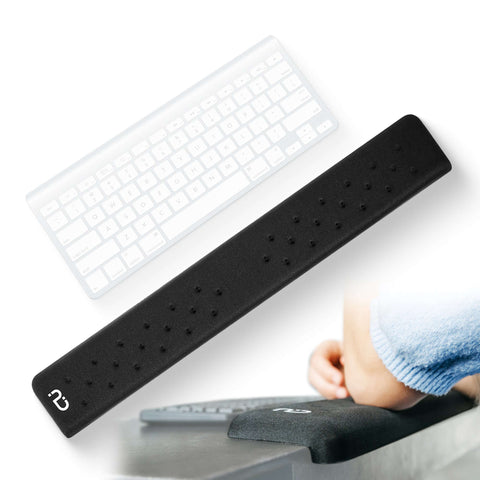
If the front of your desk feels sharp where your forearms cross it, consider using a dedicated edge cushion. The PostureUp EdgeRest is an L-shaped wrist rest for the desk edge that adds soft support where your arms meet the desk. This pairs well with a raised laptop and external keyboard to reduce edge pressure from both the laptop and the desk.
Choosing and positioning palm pads for laptops
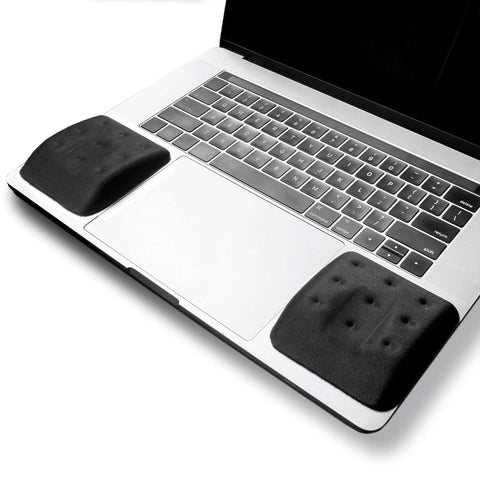
Palm pads for laptops add cushioning without modifying the device. Look for low-profile pads that will not block the trackpad or cover important keys. Many people prefer separate left and right pads so they can fine-tune placement, especially around a watch or bracelet on one wrist.
If you want a dedicated “watch pad for laptop” setup, position a soft pad directly under the wrist that wears the watch. That way, the watch rests on foam instead of the laptop casing, protecting both surfaces. Your other wrist can either rest on a matching pad or hover more freely.
- ✅ Place pads far enough from the keyboard so keys remain easy to reach without bending wrists.
- ✅ Keep pads clear of the trackpad so gestures and clicks remain reliable.
- ✅ Align the highest part of each pad under the palm, not under the middle of the forearm.
- ✅ Test different distances from the edge until your wrists feel naturally straight.
PostureUp’s WavePads laptop wrist rests are a pair of memory foam pads, each measuring 3.5 x 3.5 inches, plus a stainless steel holder. They can sit directly on the laptop palm-rest area or on the desk in front of a keyboard. You can also use one pad alone as a mouse wrist rest, placing it just in front of your usual mouse grip.
For detailed sizing and layout ideas, review the WavePads dimensions guide , which shows how the 3.5 x 3.5 inch footprint fits different laptop and desk setups. WavePads come in several colors, so you can match your device or keep them visually distinct on a desk.
Using WavePads to cushion and protect your laptop palm rest
WavePads are PostureUp’s dedicated palm pads for laptops, built around memory foam for soft but stable support. Each set includes two separate 3.5 x 3.5 inch pads and a stainless steel holder. Because they are individual pads rather than a single long strip, you can space them to match your shoulder width, keyboard layout, and jewelry.
For laptop use, place each WavePad on the palm rest just below the spacebar and home-row keys, leaving clearance for the trackpad in the center. Adjust the angle so your palms land on the foam while your fingers relax over the keys. If you wear a watch, slide the pad slightly under the watch area to create a focused cushion that also acts as a watch pad for laptop protection.
WavePads also work on the desk in front of an external keyboard. Position them where your palms land between keystrokes, or use a single pad as a mouse wrist rest. Because the pads are small and separate, they are easy to pick up and move between workspaces.
Option A |
Option B |
|
Placement Style |
WavePads on laptop palm rest, spaced to match your hands and watch position. |
WavePads on desk in front of external keyboard or beside mouse. |
Primary Benefit |
Cushions the built-in laptop edge and protects the finish from watches and bracelets. |
Adds a consistent soft landing zone across keyboard and mouse for desk-based setups. |
WavePads come in several colors, so you can choose a discreet look that blends with most laptops or a more visible color that stands out on the desk. Either way, the goal is the same: reduce the hardness of the contact area, give your wrists a more forgiving surface, and help you maintain a comfortable hand position across long sessions.
Frequently asked questions
What is a palm rest on a laptop supposed to do?
It provides a landing area for your palms and lower wrists while you type or use the trackpad, so your hands aren’t hanging off the front edge. Used well, it supports brief contact between keystrokes rather than constant pressure.
Is it bad to rest your wrists on the laptop palm rest while typing?
Heavy, continuous pressure on a hard edge isn’t ideal. Aim for light contact with relaxed hands, keep your wrists as straight as you can, and take regular breaks. If you have ongoing pain or numbness, see a qualified clinician.
How can I protect my laptop palm rest from watch scratches?
Place a soft palm pad under the watch area so the metal touches cushioning instead of the laptop casing, or remove the watch while you type. This helps prevent scuffs and protects the finish.
What can I use instead of the built-in palm rest on my laptop?
You can float your hands slightly above the surface, connect an external keyboard and mouse so your hands rest on the desk, or add separate palm pads so your wrists contact foam rather than bare metal or plastic.
Do I really need palm pads for laptops, or are they optional?
Palm pads are optional comfort accessories. If the laptop palm rest feels sharp, hard, or slippery, or if you want to shield it from watch marks, adding pads like WavePads can create a softer landing zone.
References and further reading
For more on neutral wrist alignment and laptop setup strategies, see PostureUp’s ergonomics article on
neutral wrist posture and laptop keyboard alignment
, along with the
WavePads dimensions page
for layout planning ideas.
Ready to improve your workspace?
Explore our full range of ergonomic products designed for comfort and productivity.
Browse Our Collection